Ryngo
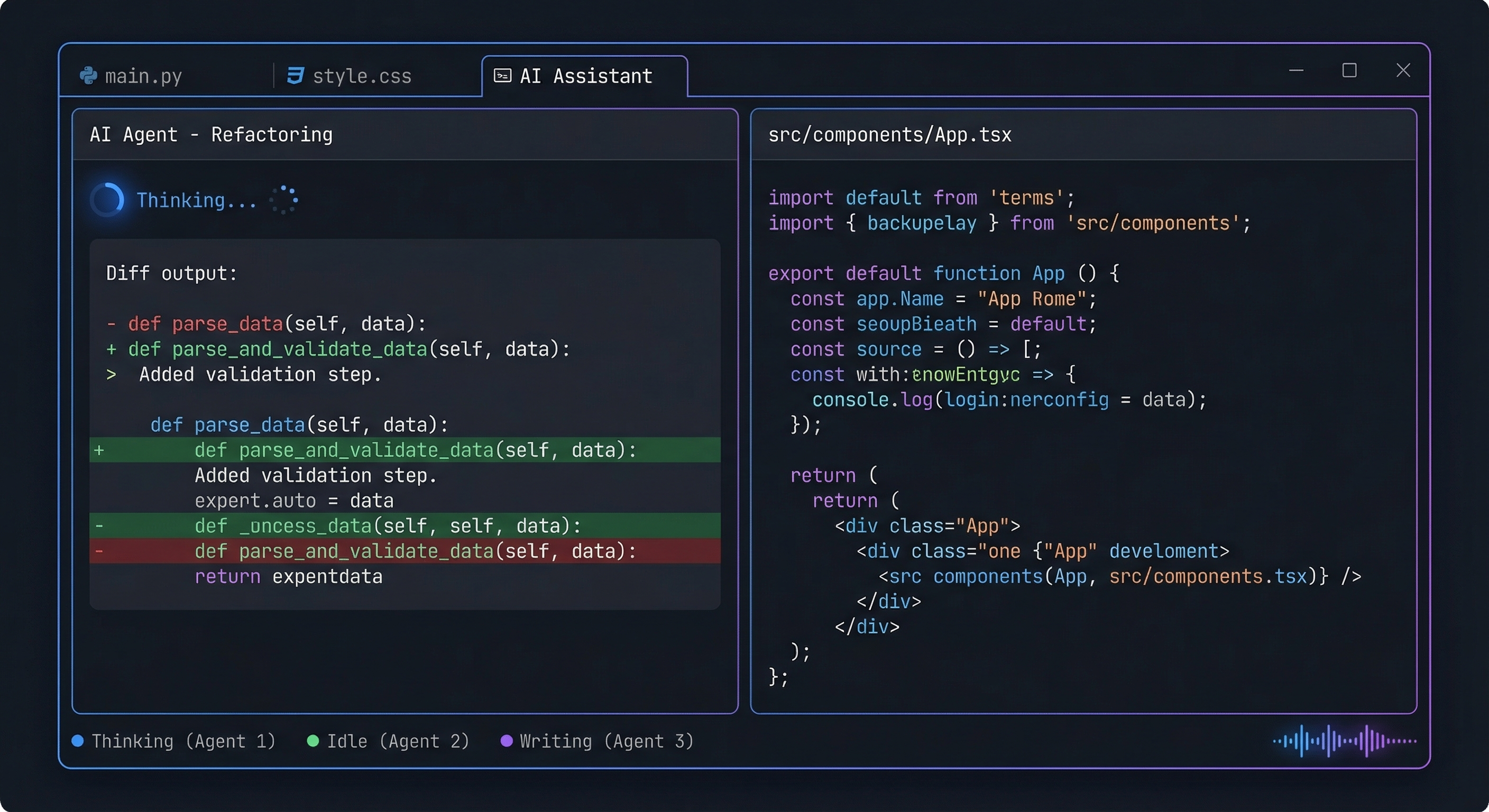
The AI-Native Terminal
Ryngo is a GPU-accelerated terminal emulator built for the age of AI agents. Local speech-to-text, text-to-speech, vision, and language models — all running on your hardware. No cloud. No accounts. No latency.
Ryngo doesn’t bolt AI onto a terminal as an afterthought. It treats AI agents like Claude Code and Codex as first-class citizens, giving you voice control, intelligent output summarization, image understanding, and multi-agent orchestration — all from the command line.
The Problem
Developers are spending more time than ever working alongside AI coding agents. You run Claude Code in one tab, Codex in another, and maybe a third agent reviewing your tests. But your terminal has no idea any of this is happening. It treats an AI agent the same way it treats ls — as dumb text on a screen.
Meanwhile, interacting with these agents means constant typing. You can’t speak a complex instruction while your hands are busy. You can’t paste a screenshot of a bug and have your agent understand it. You can’t glance at a status bar to see which agents are thinking, which are waiting for approval, and which have errored out. And when an agent dumps 200 lines of build output, you have to read every line yourself — there’s no intelligent summary, no voice readback, no way to ask “what just happened?”
The terminal hasn’t evolved for the AI-agent workflow. Ryngo changes that.
What Is Ryngo?
Ryngo is a full-featured terminal emulator — everything you expect from a modern terminal (tabs, splits, GPU rendering, Lua scripting, ligatures, true color, sixel images) — plus a deeply integrated AI layer that runs entirely on your local machine.
Built on top of the battle-tested WezTerm codebase (hundreds of contributors, years of production use), Ryngo inherits rock-solid terminal emulation and cross-platform rendering while adding an entirely new dimension: embedded AI inference.
Ryngo ships with three local AI models:
- Gemma 3n (Google’s efficient multimodal model) for language understanding, vision, output summarization, and intent routing
- Whisper (OpenAI’s speech recognition model) for hands-free voice commands
- Orpheus 3B (state-of-the-art open TTS) for natural, emotional text-to-speech readback of terminal output
All three models run locally via native Rust bindings to llama.cpp and whisper.cpp. There is no cloud API, no Ollama dependency, no Docker container, no Python runtime. Models are downloaded once on first launch and stored in ~/.ryngo/models/. After that, everything runs offline, on-device, with hardware acceleration (Metal on macOS, CUDA/Vulkan on Windows).
Voice Control (Speech-to-Text)
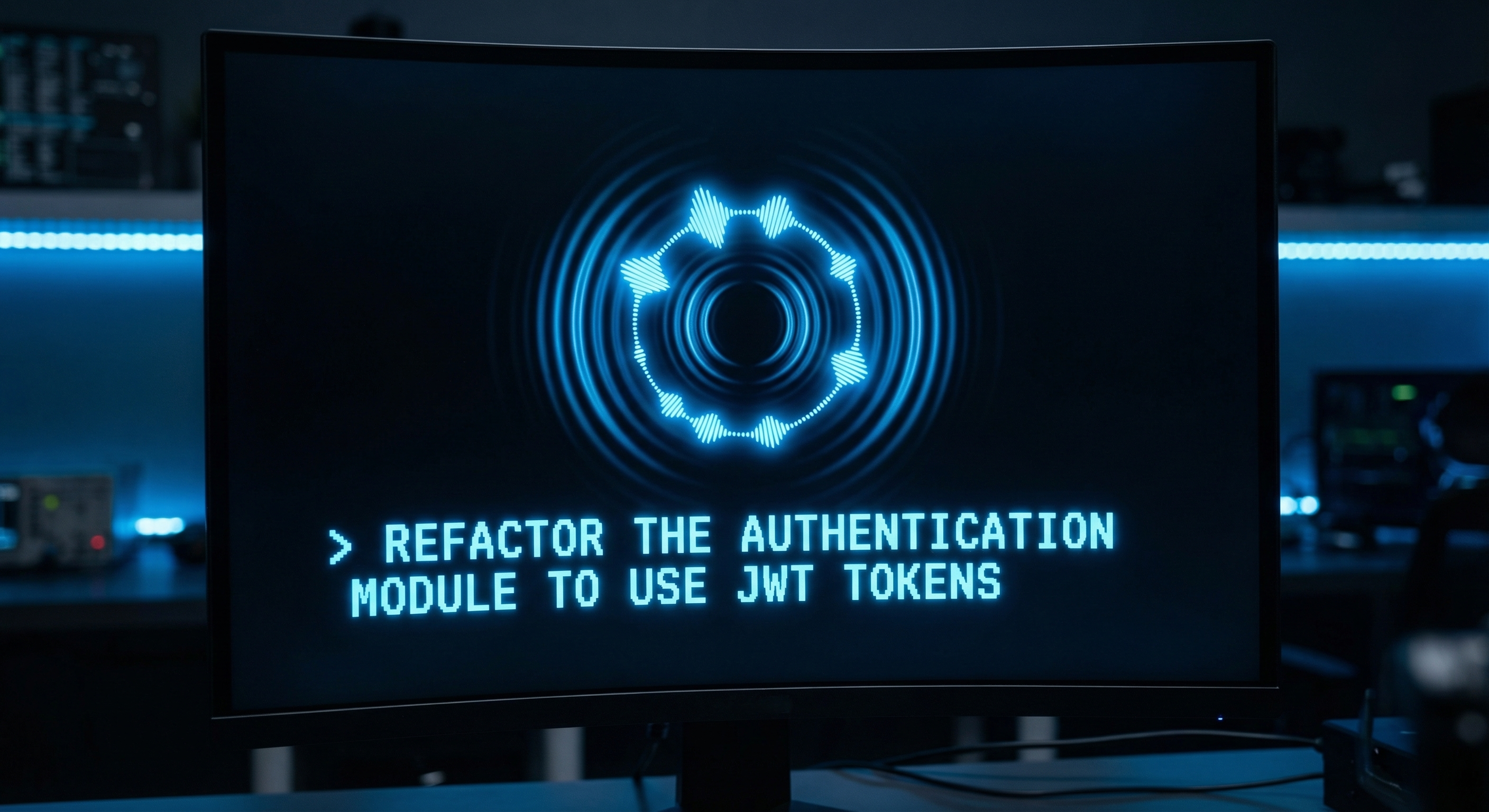
Hold Ctrl+Shift+Space and speak. Release, and your words appear in the terminal as text — ready to be executed as a command or consumed by an AI agent.
Ryngo uses Whisper, the most accurate open-source speech recognition model available, running locally on your machine. Choose from multiple model sizes depending on your hardware: the base model for fast command recognition, or the large-v3-turbo model for near-human accuracy with natural speech.
No more switching to a chat window to type a long instruction to Claude Code. Just hold the key and talk. Ryngo handles the rest — capturing audio from your microphone, running inference, and injecting the transcribed text directly into your terminal session.
Future releases will include fine-tuned Whisper models optimized for developer vocabulary — so it correctly recognizes terms like kubectl, chmod 755, HashMap<String, Vec<u8>>, and file paths like /etc/nginx/conf.d/.
Intelligent Text-to-Speech
Toggle TTS with Ctrl+Shift+Alt and Ryngo will read terminal output back to you — but not the way you’d expect.
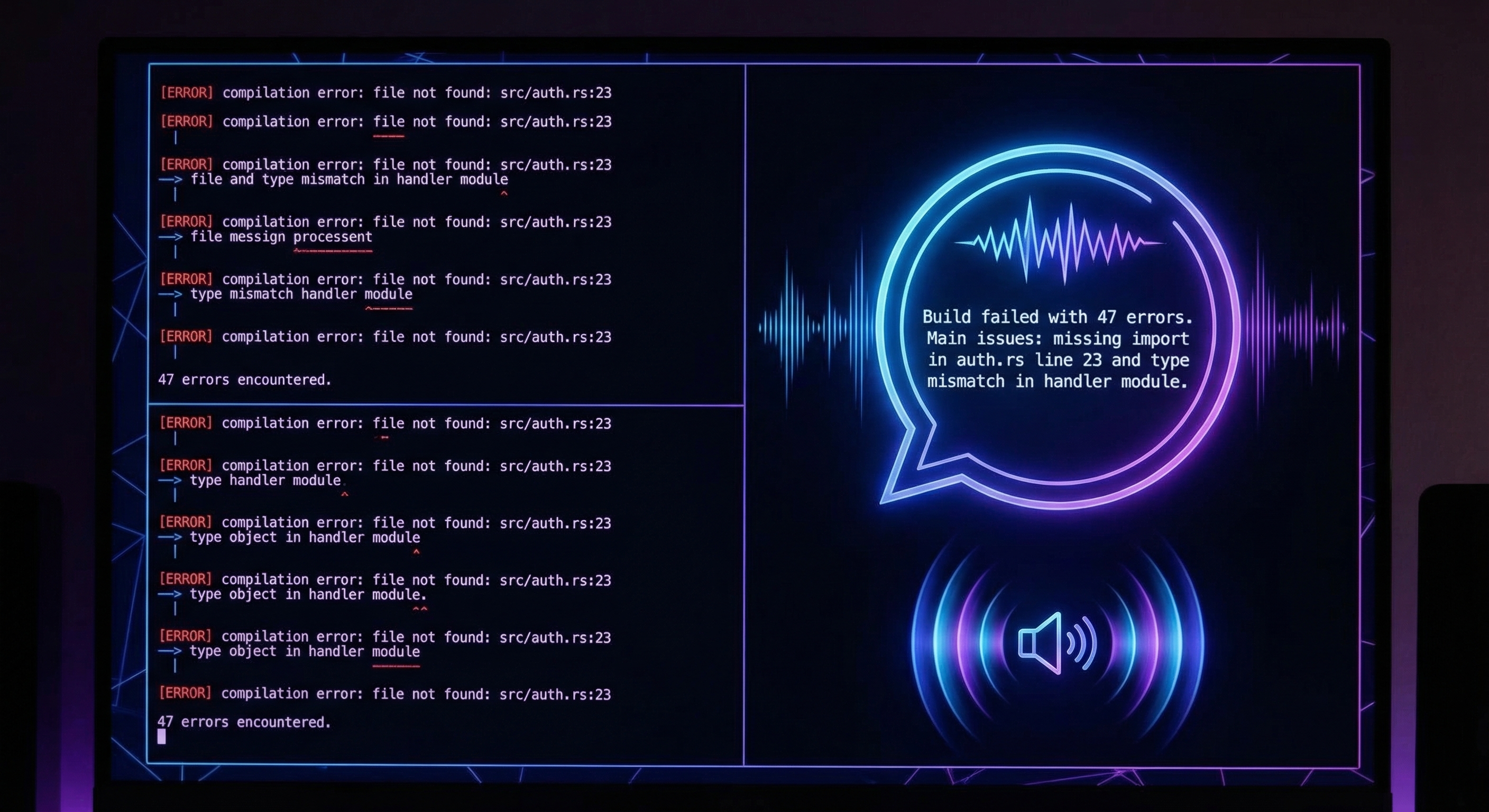
Most text-to-speech systems would read raw terminal output verbatim. Imagine hearing a robotic voice read out 47 compiler warnings, one by one, including ANSI escape codes. Useless.
Ryngo does something no other tool does: before speaking, it runs terminal output through Gemma 3n to produce an intelligent, human-friendly summary. A build that fails with 47 errors becomes: “Build failed with 47 errors. The main issues are a missing import in auth.rs on line 23 and a type mismatch in the handler module.” A successful deploy becomes: “Deploy completed. All 12 services are healthy.”
The speech itself is powered by Orpheus 3B, a state-of-the-art text-to-speech model that produces natural, expressive audio with support for emotional inflection. Ryngo’s LLM layer can even insert contextual emotional cues — a subtle sigh after a failed build, an upbeat tone after a clean test run.
Eight distinct voices are available (Tara, Leah, Leo, Dan, Mia, Zac, Zoe, Jess), switchable with a simple command. Audio streams in real-time — Ryngo starts speaking before the full response is generated, keeping latency low. And if you start speaking (activating STT), Ryngo immediately stops talking. Barge-in is instant and natural.
Vision Paste
Press Ctrl+Shift+V with an image on your clipboard — a screenshot of a bug, a design mockup, a diagram, an error dialog — and Ryngo sends it through Gemma 3n’s vision model. The image is converted into a detailed text description and injected directly into your terminal.
This means your AI agent can “see” what you see. Paste a screenshot of a broken UI, and Claude Code receives a description like: “Screenshot of a React component rendering a login form. The submit button is overlapping the password field. The button has a blue background with white text and appears to be positioned absolutely without proper margin.”
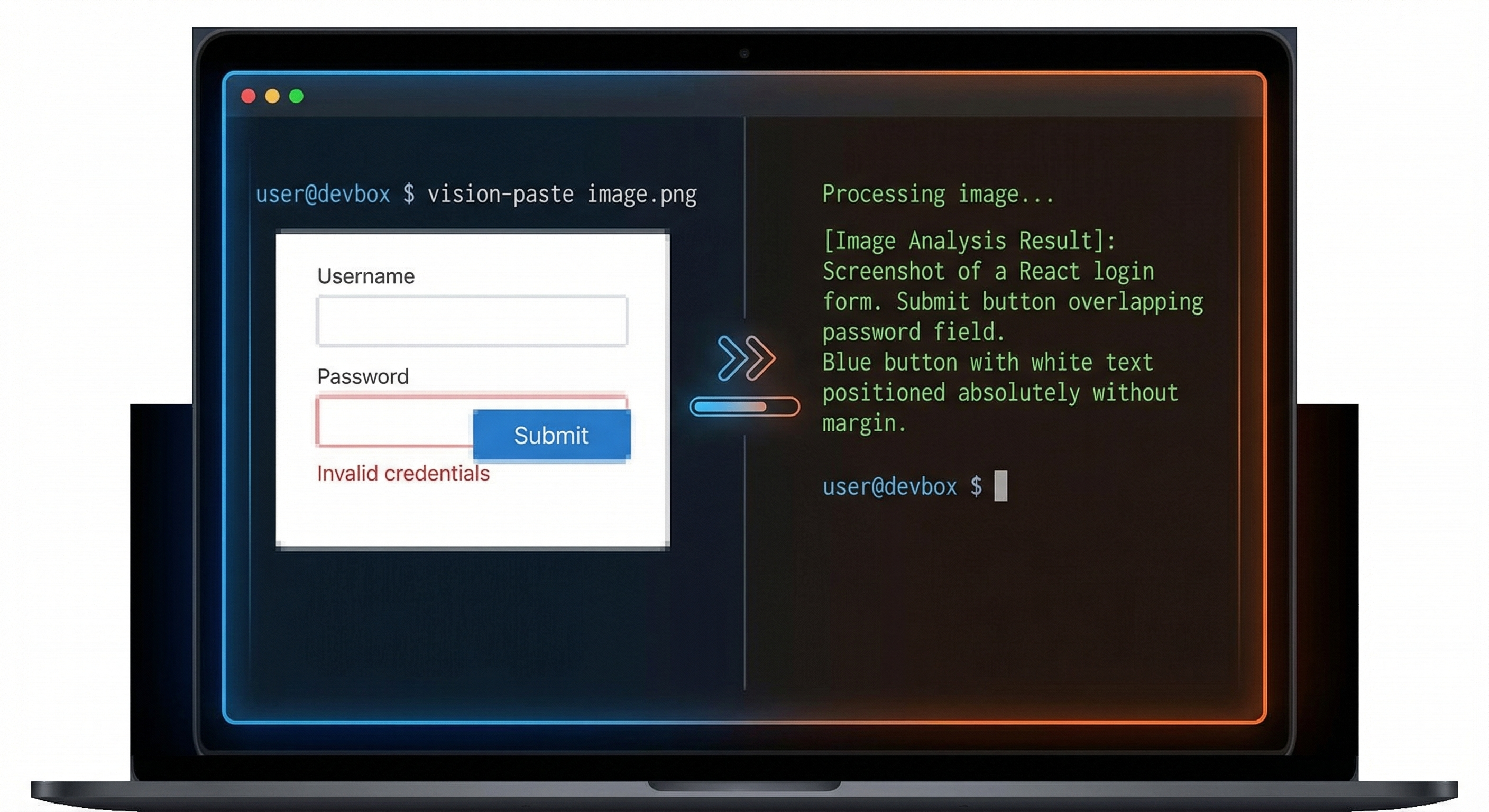
No need to manually describe visual bugs. No need to upload images to a separate service. Just paste and let Ryngo bridge the gap between what’s on your screen and what your agent can understand. Supports PNG, JPEG, and raw screenshot data directly from your system clipboard.
Agent Detection & Orchestration
Ryngo watches your terminal sessions and automatically detects when an AI agent is running. It recognizes Claude Code, Codex, and other agents by parsing PTY output for known patterns — permission prompts, thinking indicators, tool use blocks, and status lines.
Each detected agent gets a real-time status displayed in the status bar:
- Idle — Agent is waiting for input
- Thinking — Agent is processing
- Writing — Agent is generating code or output
- Waiting for Approval — Agent needs you to allow or deny an action
- Errored — Something went wrong
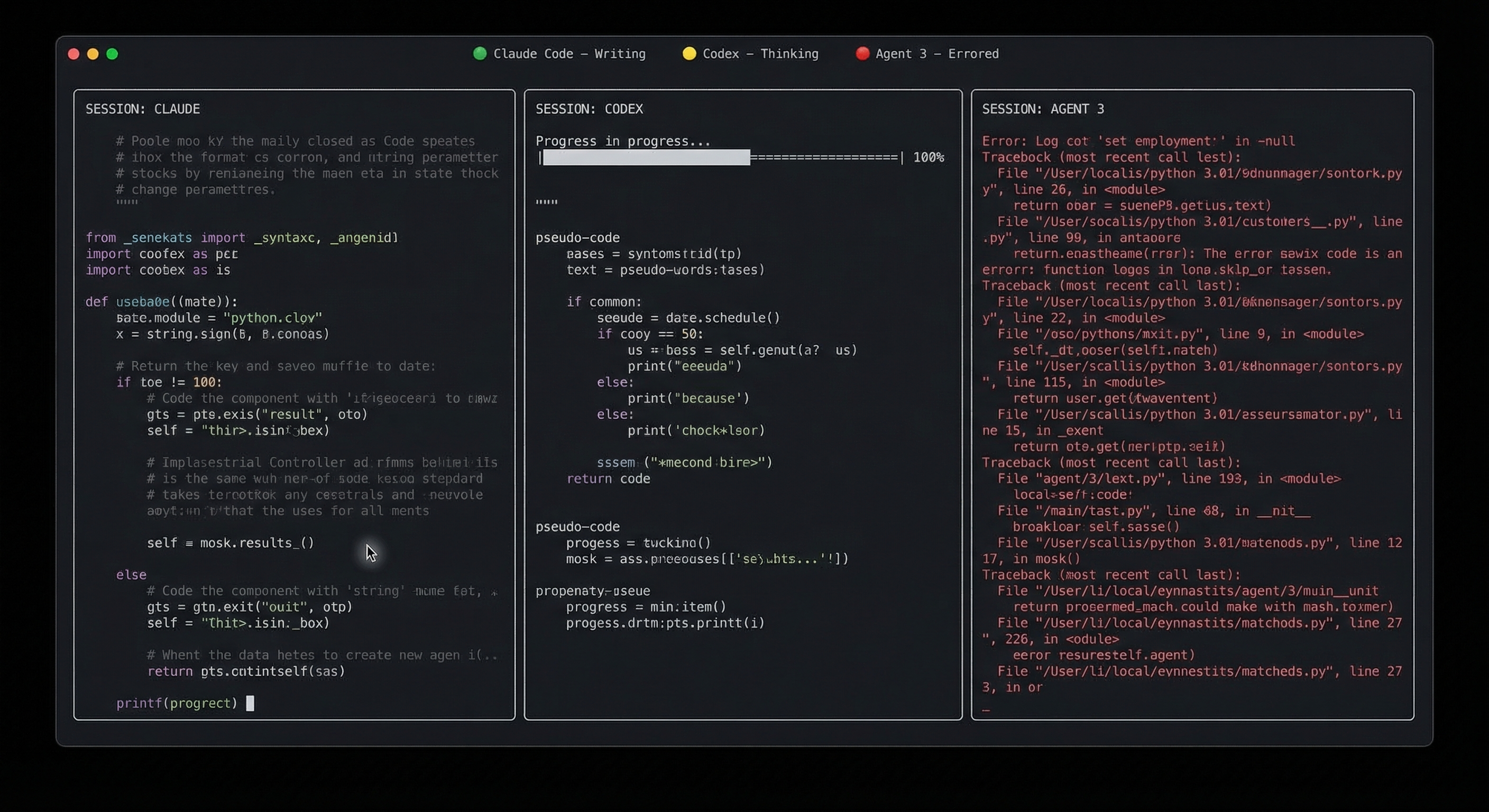
At a glance, you can see the state of every agent across all your tabs. No more switching between tabs to check if Claude Code is still thinking or if it’s waiting for you to approve a file write.
Terminal-Native Commands
Ryngo adds a colon-command system inspired by Vim. Type commands directly in your terminal — no separate UI, no modal dialogs, no context switching:
| Command | What It Does |
|---|---|
:spawn cc |
Launch Claude Code in a new tab |
:spawn cc ~/projects/myapp |
Launch Claude Code in a specific directory |
:spawn codex |
Launch Codex in a new tab |
:agents |
List all active AI agents with their status |
:kill 3 |
Kill agent session #3 |
:models |
Show loaded models and GPU memory usage |
:voice on |
Enable voice features |
:tts voice mia |
Switch to the Mia TTS voice |
Commands are intercepted before they reach your shell. If a command isn’t recognized as a Ryngo command, it passes through to your shell as normal. The terminal stays the terminal — Ryngo just makes it smarter.
Full-Featured Terminal Emulation
Beneath the AI layer, Ryngo is a complete, modern terminal emulator. It inherits the full feature set of WezTerm, one of the most capable terminal emulators available:
- GPU-accelerated rendering via wgpu (Metal, Vulkan, DirectX 12) — buttery smooth scrolling even with thousands of lines of output
- Multiplexing — tabs, splits, and panes with a built-in mux server. Detach and reattach sessions like tmux, but integrated into the terminal itself
- True color and beyond — full 24-bit color, sixel and iTerm2 image protocol support, Unicode 15 with emoji
- Font rendering — ligatures, color emoji, fallback fonts, configurable line height and cell width
- Lua scripting — full programmability via Lua. Your existing WezTerm configs work with Ryngo
- Shell integration — prompt detection, clickable URLs, semantic zones
- Cross-platform — native on macOS (Apple Silicon optimized) and Windows
- SSH multiplexing — built-in SSH client with multiplexed connections
- Search — regex-powered scrollback search with highlighting
- Quick select — select and copy URLs, file paths, git hashes, and other patterns with keyboard shortcuts
Privacy & Performance
Ryngo never sends your terminal data to a cloud service. Every AI feature — speech recognition, language understanding, vision, text-to-speech — runs on your local hardware. Your code, your commands, your voice, and your screenshots never leave your machine.
This isn’t just a privacy feature. It’s a performance feature. Local inference means no network latency, no rate limits, no API keys, no accounts to create, no billing to manage. It works offline — on a plane, in a bunker, in a SCIF. Nothing is logged, stored, or used to train models.
Hardware Requirements
| Tier | Configuration |
|---|---|
| Minimum (8 GB) | Gemma 3n E2B (2 GB) + Orpheus 3B (2 GB) + Whisper small.en (0.5 GB). Any Apple Silicon Mac or NVIDIA GPU with 4+ GB VRAM |
| Recommended (16 GB) | Gemma 3n E4B (4 GB) for better vision and summarization. M1 Pro/Max or NVIDIA GPU with 8+ GB VRAM |
A first-run wizard detects your hardware, shows VRAM estimates, and lets you choose the right model configuration. You can also skip AI features entirely and use Ryngo as a fast, GPU-accelerated terminal.
Under the Hood
Ryngo’s AI subsystem is implemented as a dedicated Rust crate (ryngo-ai) that runs inference on background threads. The terminal UI is never blocked by AI processing — you can type, scroll, and interact normally while models are loading, transcribing, or generating.
The three AI backends share a common GPU memory pool:
- Whisper (whisper.cpp via whisper-rs) handles audio capture and transcription via the cross-platform cpal audio library
- Gemma 3n (llama.cpp via llama-cpp-2) handles text understanding, vision, and output summarization — a single model for all three tasks
- Orpheus 3B (also llama.cpp via llama-cpp-2) generates speech from text, outputting SNAC codec audio tokens decoded into 24kHz audio streamed to speakers via cpal
Agent detection runs in the ryngo-agent crate, which monitors PTY output streams with pattern matching. It recognizes Claude Code’s box-drawing permission prompts, thinking indicators, and tool use blocks. Status is tracked per-tab and aggregated in the status bar.
All models are stored in ~/.ryngo/models/ and downloaded from HuggingFace on first launch. Total download size is approximately 4–7 GB depending on configuration. After the initial download, Ryngo works completely offline.
Configuration
Ryngo uses Lua for configuration, just like WezTerm. Create a ryngo.lua file in your config directory:
local ryngo = require 'ryngo'
local config = ryngo.config_builder()

-- Standard terminal settings
config.font_size = 14.0
config.color_scheme = 'Catppuccin Mocha'
config.window_background_opacity = 0.95

-- AI settings
config.ryngo_ai = {
  enabled = true,
  gemma_model = 'e4b',
  whisper_model = 'small.en',
  tts_voice = 'tara',
  tts_enabled = false,
}

return config
Existing WezTerm configurations work out of the box — the wezterm Lua module is available as an alias for backward compatibility.
Keyboard Shortcuts
| Shortcut | Action |
|---|---|
| Ctrl+Shift+Space | Push-to-talk — hold to record, release to transcribe |
| Ctrl+Shift+Alt | Toggle text-to-speech on/off |
| Ctrl+Shift+V | Paste image from clipboard through vision AI |
| Ctrl+Shift+T | New tab |
| Ctrl+Shift+N | New window |
| Ctrl+Shift+F | Search scrollback |
| Ctrl+Shift+P | Command palette |
All shortcuts are fully customizable via ryngo.lua.
Get Started
- Download Ryngo for your platform (macOS .dmg or Windows .msi)
- Launch — the first-run wizard detects your hardware and downloads models
- Use your terminal — everything works out of the box
- Try voice — hold Ctrl+Shift+Space and speak a command
- Paste an image — Ctrl+Shift+V with a screenshot on your clipboard
- Spawn an agent — type
:spawn ccto launch Claude Code in a new tab